Meeting transcription and AI minutes for Thai and English meetings
Record a meeting in the browser or upload the recording. Scripta returns a transcript with speaker labels and timestamps, then drafts minutes in four parts: summary, decisions, action items with owners, and open questions. Thai, English, and both mixed in one sentence all work. You review the draft before it goes anywhere.
Last updated Scripta by SyncEdge
On this page
How does it work?
Record or upload the meeting, choose the "Meeting minutes" note, and wait a few minutes. The transcript and the draft minutes appear side by side on one page.
- 1
Record or upload
Record in the browser, or upload MP3, M4A, WAV, FLAC, OGG, AAC, WebM or MP4 video, up to 2 GB per file.
- 2
Get a speaker-labelled transcript
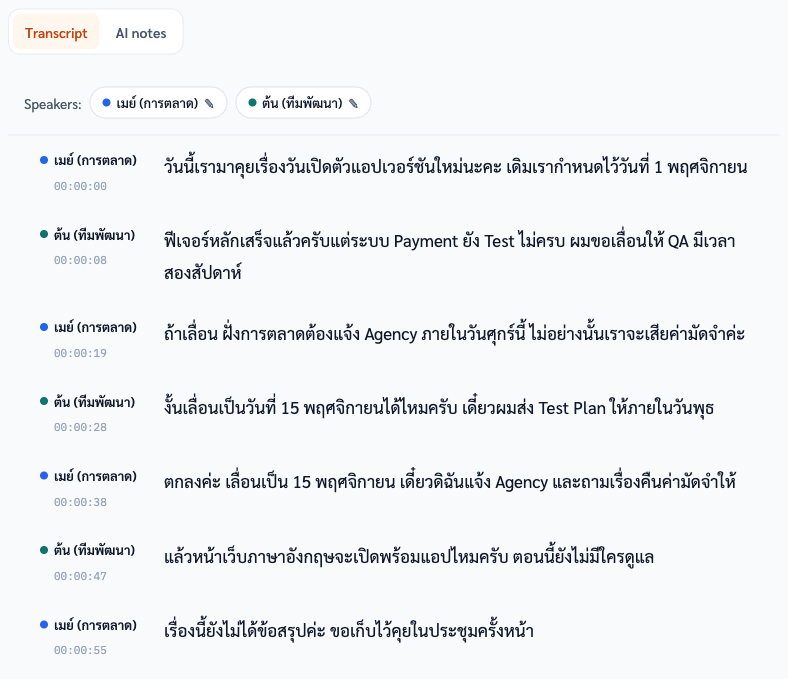
Every line has a speaker and a timestamp. Rename a speaker once for the whole file; click a timestamp to hear that moment.
- 3
Get draft minutes
Summary, decisions, action items and open questions, plus a "Please verify" box listing what the AI was unsure of.
What does the transcript look like?
Each stretch of speech is its own line with the speaker's name and a timestamp. Thai stays in Thai script and English terms stay in Latin script, as they were spoken.
What goes into the AI minutes?
Always four sections: summary, decisions, action items and open questions. The AI writes only from what was said. If nobody named an owner or a due date, the minutes say so instead of guessing.
Summary
What the meeting was about, who proposed what, and how it ended, in one paragraph.
Decisions
What the meeting agreed, as a list.
Action items
Who does what, by when. Missing owners or dates are marked as not stated.
Open questions
What is still undecided, to carry into the next meeting.
You choose the note's language each time, so a meeting held in Thai can produce English minutes. The transcript itself stays in the language that was spoken; Scripta does not translate transcripts.
Does it work with Zoom, Teams or Google Meet?
Yes, through a recording: record the call with the platform's own recorder, then upload the audio or MP4 file. Scripta has no bot that joins your meetings and no direct Zoom or Teams integration.
- For an in-room meeting, record in the browser on a laptop or phone in the middle of the table. There is a mic check before you start.
- Want to see text while the meeting runs? Turn on live text for +0.5 credits a minute.
- Ask participants for consent before recording.
What does a one-hour meeting cost?
A 60-minute meeting uses 90 credits: 60 for the transcript and 30 for the minutes. That is $13.50 pay-as-you-go, or about $2.67 at the largest pack's per-credit price. Credits are only charged when the transcription succeeds.
Full price list on the pricing page.
Questions
Can Scripta join my Zoom or Teams call automatically?
No. There is no meeting bot. Record the call with Zoom, Teams or Meet and upload the file, or record in the browser in the room.
Are the minutes ready to send?
They are a draft to review. The AI can attribute a point to the wrong person or misread a date. Check the "Please verify" list first, then edit any section on screen.
Can I export to Word?
The transcript exports to DOCX, TXT, SRT and VTT. The minutes copy to Word or email with the copy button.
Try it on your own recording
Sign up free and get 30 credits, enough for 30 minutes of transcription. No card needed.